共享首选项(shared preferences)
post by:追风剑情 2015-8-8 13:30
用来保存小块数据的轻量经的机制。
一、新建一个xml文件 res\xml\myapppreferences.xml
<?xml version="1.0" encoding="utf-8" ?>
<PreferenceScreen
    xmlns:android="http://schemas.android.com/apk/res/android">
    <PreferenceCategory android:title="Category 1">
        <CheckBoxPreference
            android:title="Checkbox"
            android:defaultValue="false"
            android:summary="True or False"
            android:key="checkboxPref">
        </CheckBoxPreference>
    </PreferenceCategory>
    <PreferenceCategory android:title="Category 2">
        <EditTextPreference
            android:summary="Enter a string"
            android:defaultValue="[Enter a string here]"
            android:title="Edit Text"
            android:key="editTextPref" />
        <RingtonePreference
            android:summary="Select a ringtone"
            android:title="Ringtones"
            android:key="ringtonePref" />
        <PreferenceScreen
            android:title="Second Preference Screen"
            android:summary="Click here to go to the second Preference Screen"
            android:key="secondPrefScreenPref" >
            <EditTextPreference
                android:summary="Enter a string"
                android:title="Edit Text (second Screen)"
                android:key="secondEditTextPref"/>
        </PreferenceScreen>
    </PreferenceCategory>
</PreferenceScreen>
二、创建活动AppPreferenceActivity
package com.example.androidtest;

import android.os.Bundle;
import android.preference.PreferenceActivity;
import android.preference.PreferenceManager;

public class AppPreferenceActivity extends PreferenceActivity {

	@Override
	protected void onCreate(Bundle savedInstanceState) {
		super.onCreate(savedInstanceState);

		//首选项默认名称: <PackageName>_preferences
		//修改首选项文件的默认名称
		//PreferenceManager prefMgr = getPreferenceManager();
		//prefMgr.setSharedPreferencesName("appPreferences");

		//---load the preferences from an XML file---
		addPreferencesFromResource(R.xml.myapppreferences);
	}
}
三、创建活动UsingPreferencesActivity
视图
<LinearLayout xmlns:android="http://schemas.android.com/apk/res/android"
    xmlns:tools="http://schemas.android.com/tools"
    android:layout_width="fill_parent"
    android:layout_height="fill_parent"
    android:orientation="vertical"
    tools:context="${relativePackage}.${activityClass}" >

    <Button
        android:id="@+id/btnPreferences"
        android:text="Load Preferences Screen"
        android:layout_width="fill_parent"
        android:layout_height="wrap_content"
        android:onClick="onClickLoad" />

    <Button
        android:id="@+id/btnDisplayValues"
        android:text="Display Preferences Values"
        android:layout_width="fill_parent"
        android:layout_height="wrap_content"
        android:onClick="onClickDisplay" />

    <EditText
        android:id="@+id/txtString"
        android:layout_width="fill_parent"
        android:layout_height="wrap_content"/>

    <Button
        android:id="@+id/btnModifyValues"
        android:text="Modify Preferences Screen"
        android:layout_width="fill_parent"
        android:layout_height="wrap_content"
        android:onClick="onClickModify" />
</LinearLayout>
代码
package com.example.androidtest;

import android.app.Activity;
import android.content.Intent;
import android.content.SharedPreferences;
import android.os.Bundle;
import android.view.View;
import android.widget.EditText;
import android.widget.Toast;

public class UsingPreferencesActivity extends Activity {

	@Override
	protected void onCreate(Bundle savedInstanceState) {
		super.onCreate(savedInstanceState);
		setContentView(R.layout.activity_using_preferences);
	}

	public void onClickLoad(View view)
	{
		Intent i = new Intent(this, AppPreferenceActivity.class);
		startActivity(i);
	}

	public void onClickDisplay(View view)
	{
		SharedPreferences appPrefs = getSharedPreferences("com.example.androidtest_preferences", MODE_PRIVATE);
		DisplayText(appPrefs.getString("editTextPref", ""));
	}

	public void onClickModify(View view)
	{
		String text = ((EditText)findViewById(R.id.txtString)).getText().toString();
		//默认保存首选项的xml文件保存在<PackageName>_preferences中。
		//MODE_PRIVATE : 表示只有创建首选项文件的应用程序能够打开首选项文件。
		SharedPreferences appPrefs = getSharedPreferences("com.example.androidtest_preferences", MODE_PRIVATE);
		SharedPreferences.Editor prefsEditor = appPrefs.edit();
		prefsEditor.putString("editTextPref", text);
		prefsEditor.commit();//保存修改
	}

	private void DisplayText(String str)
	{
		Toast.makeText(getBaseContext(), str, Toast.LENGTH_LONG).show();
	}
}
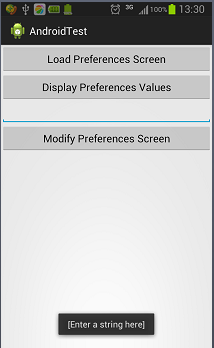
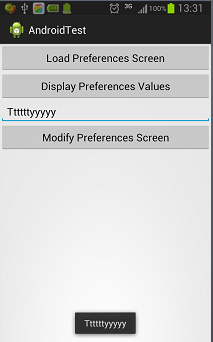
运行效果
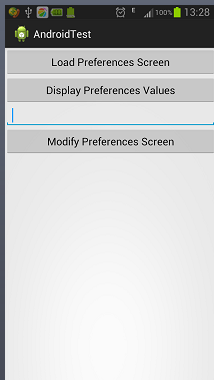
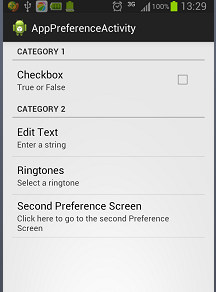
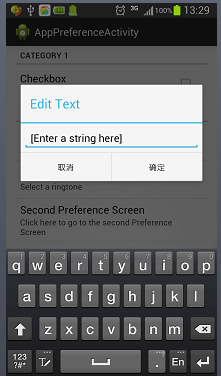
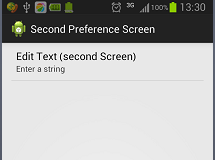
评论:
发表评论: