HybridCLR中使用MonoBehaviour
post by:追风剑情 2026-1-23 18:07
学习本教程前需要先看懂 HybridCLR快速入门
一、动态挂载热更脚本
1、创建热更脚本 Assets\HotUpdate\Print.cs
using UnityEngine;

public class Print : MonoBehaviour
{
    void Start()
    {
        Debug.Log($"[Print] GameObject:{name}");
    }
}
2、修改 Hello.cs
using UnityEngine;

public class Hello
{
    public static void Run()
    {
        Debug.Log("Hello, World");

        GameObject go = new GameObject("Test1");
        go.AddComponent<Print>();
    }
}
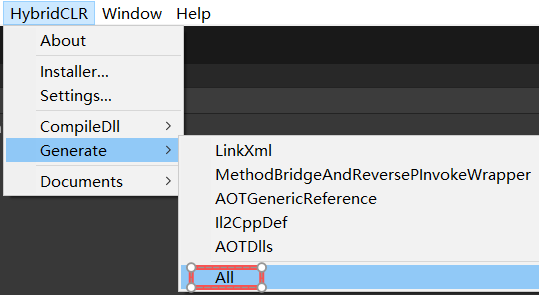
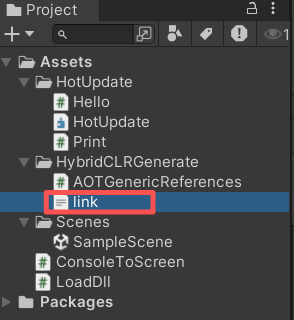
执行菜单 【HybridCLR】->Generate->All,重新生成 link.xml。
二、运行测试
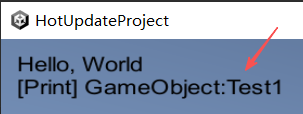
屏幕上输出 [Print] GameObject:Test1 说明新加的脚本已经热更成功!
三、通过加载资源(AssetBundle)的方式热更代码
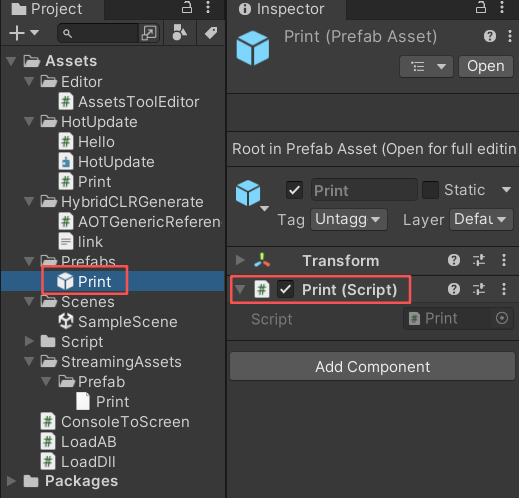
1、创建一个预置体,命名为 Print.prefab,并添加 Print.cs 脚本。
2、创建加载AssetBundle的脚本 LoadAB.cs
using System;
using System.Collections;
using UnityEngine;
using UnityEngine.Networking;

public class LoadAB : MonoBehaviour
{
    void Start()
    {
        string url = string.Format("{0}/Prefab/Print.ab", Application.streamingAssetsPath);
        StartCoroutine(LoadAssetBundleAsync(url,
            ab => {
                //从AssetBundle中提取Prefab
                GameObject prefab = ab.LoadAsset<GameObject>("Print");
                //创建一个Prefab实例
                GameObject go = Instantiate(prefab);
                go.name = "Test2";
            }));
    }

    // 异步加载 AssetBundle
    public static IEnumerator LoadAssetBundleAsync(string url, Action<AssetBundle> completedCallback = null, Action<string> errorCallback = null, Action<float> progressCallback = null)
    {
        using (UnityWebRequest webRequest = UnityWebRequestAssetBundle.GetAssetBundle(url))
        {
            ((DownloadHandlerAssetBundle)webRequest.downloadHandler).autoLoadAssetBundle = false;
            webRequest.SendWebRequest();
            while (!webRequest.isDone)
            {
                progressCallback?.Invoke(webRequest.downloadProgress);
                yield return null;
            }
            if (webRequest.result == UnityWebRequest.Result.ConnectionError /*webRequest.isNetworkError*/
                || webRequest.result == UnityWebRequest.Result.ProtocolError/*webRequest.isHttpError*/)
            {
                Debug.LogErrorFormat("{0}\n{1}", webRequest.error.ToString(), url);
                errorCallback?.Invoke(webRequest.error);
            }
            else
            {
                //向外部逻辑返回进度100%
                progressCallback?.Invoke(webRequest.downloadProgress);
                var assetBundle = DownloadHandlerAssetBundle.GetContent(webRequest);
                completedCallback?.Invoke(assetBundle);
                //释放镜像资源。
                assetBundle.Unload(false);
            }
        }
    }
}
3、修改 LoadDll.cs
using System;
using System.Reflection;
using System.IO;
using System.Linq;
using UnityEngine;

public class LoadDll : MonoBehaviour
{
    void Start()
    {
        // Editor环境下,HotUpdate.dll.bytes已经被自动加载,不需要加载,重复加载反而会出问题。
#if !UNITY_EDITOR
        Assembly hotUpdateAss = Assembly.Load(File.ReadAllBytes($"{Application.streamingAssetsPath}/HotUpdate.dll.bytes"));
#else
        // Editor下无需加载,直接查找获得HotUpdate程序集
        Assembly hotUpdateAss = System.AppDomain.CurrentDomain.GetAssemblies().First(a => a.GetName().Name == "HotUpdate");
#endif

        //Type type = hotUpdateAss.GetType("Hello");
        //type.GetMethod("Run").Invoke(null, null);

        //动态创建LoadAB,通过LoadAB.cs加载Print.ab
        GameObject go = new GameObject("LoadAB");
        go.AddComponent<LoadAB>();
    }
}
4、生成 Print.ab 文件
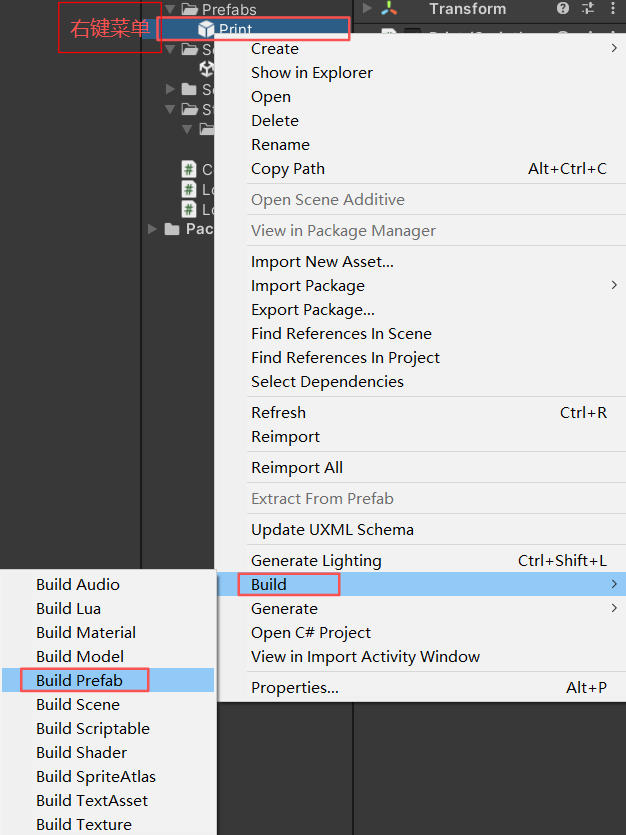
利用工具类(Assets/Editor/AssetsToolEditor.cs)提供的打包菜单生成Print.ab文件。
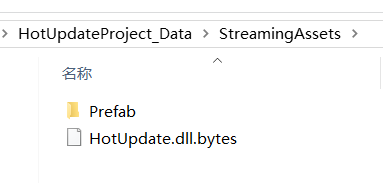
5、重新打包发布应用程序
6、运行测试
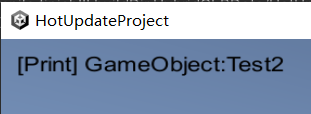
屏幕上显示 [Print] GameObject:Test2 说明加载 Print.ab 成功!
7、修改 Print.cs
using UnityEngine;

public class Print : MonoBehaviour
{
    void Start()
    {
        Debug.Log($"[Print_HotUpdate] GameObject:{name}");
    }
}
8、执行菜单 【HybridCLR】->CompileDll->ActiveBuildTarget 重新生成热更 HotUpdate.dll。然后替换发布程序中的 StreamingAssets\HotUpdate.dll.bytes。
9、再次运行测试
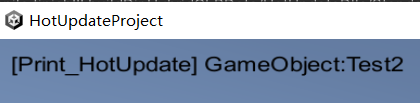
屏幕上显示 [Print_HotUpdate] GameObject:Test2 说明代码热更成功!
评论:
发表评论: