TextMeshPro——Sprite Importer
post by:追风剑情 2024-3-5 20:13
1.使用TexturePacker导出图集
导出的数据格式要选择 JSON(Array)。

启用枢轴点后,才会导出 "pivot":{"x":0.5,"y":0.5} 。
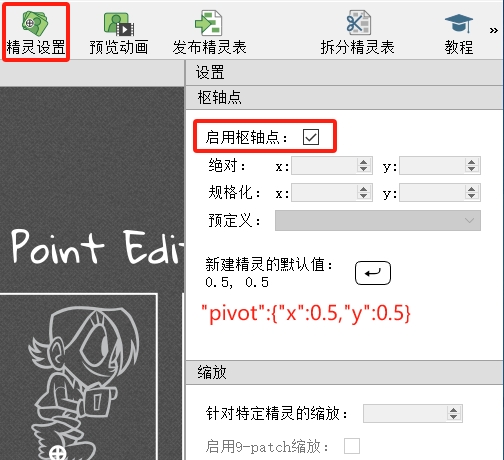
导出的json文件数据格式如下:
{"frames": [

{
	"filename": "1.png",
	"frame": {"x":72,"y":1,"w":67,"h":66},
	"rotated": false,
	"trimmed": false,
	"spriteSourceSize": {"x":0,"y":0,"w":67,"h":66},
	"sourceSize": {"w":67,"h":66},
	"pivot": {"x":0.5,"y":0.5}
},
{
	"filename": "2.png",
	"frame": {"x":1,"y":1,"w":69,"h":66},
	"rotated": false,
	"trimmed": false,
	"spriteSourceSize": {"x":0,"y":0,"w":69,"h":66},
	"sourceSize": {"w":69,"h":66},
	"pivot": {"x":0.5,"y":0.5}
},
{
	"filename": "3.png",
	"frame": {"x":275,"y":1,"w":65,"h":62},
	"rotated": true,
	"trimmed": false,
	"spriteSourceSize": {"x":0,"y":0,"w":65,"h":62},
	"sourceSize": {"w":65,"h":62},
	"pivot": {"x":0.5,"y":0.5}
},
{
	"filename": "4.png",
	"frame": {"x":141,"y":1,"w":66,"h":66},
	"rotated": false,
	"trimmed": false,
	"spriteSourceSize": {"x":0,"y":0,"w":66,"h":66},
	"sourceSize": {"w":66,"h":66},
	"pivot": {"x":0.5,"y":0.5}
},
{
	"filename": "5.png",
	"frame": {"x":209,"y":1,"w":66,"h":64},
	"rotated": true,
	"trimmed": false,
	"spriteSourceSize": {"x":0,"y":0,"w":66,"h":64},
	"sourceSize": {"w":66,"h":64},
	"pivot": {"x":0.5,"y":0.5}
}],
"meta": {
	"app": "https://www.codeandweb.com/texturepacker",
	"version": "1.0",
	"image": "TMPIcon.png",
	"format": "RGBA8888",
	"size": {"w":338,"h":68},
	"scale": "1",
	"smartupdate": "$TexturePacker:SmartUpdate:5af8896546a53553f68abacf897567f1:91e4436b1575c2c8ae9e9a3ee0422e33:eb9aa18d37d9b37db609e96b2f585044$"
}
}
2.将导出的.json和.png拷到Unity工程中
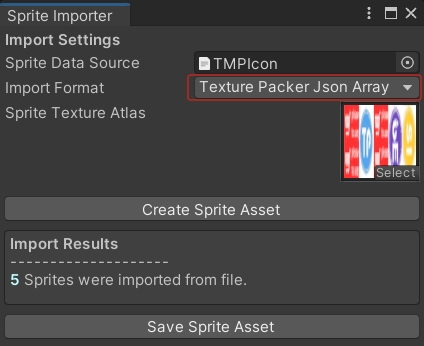
打开 Sprite Importer 窗口 (Window->TextMeshPro->Sprite Importer)。将.json拖到 Sprite Data Source 属性上,将.png拖到 Sprite Texture Atlas 属性上。点击 Create Sprite Asset 按钮,显示创建成功后再点击 Save Sprite Asset 按钮保存。
注意,将 Sprite Asset 文件保存到 Project Settings -> TextMesh Pro -> Settings -> Default Style Sheet -> Path 设置的路径下。 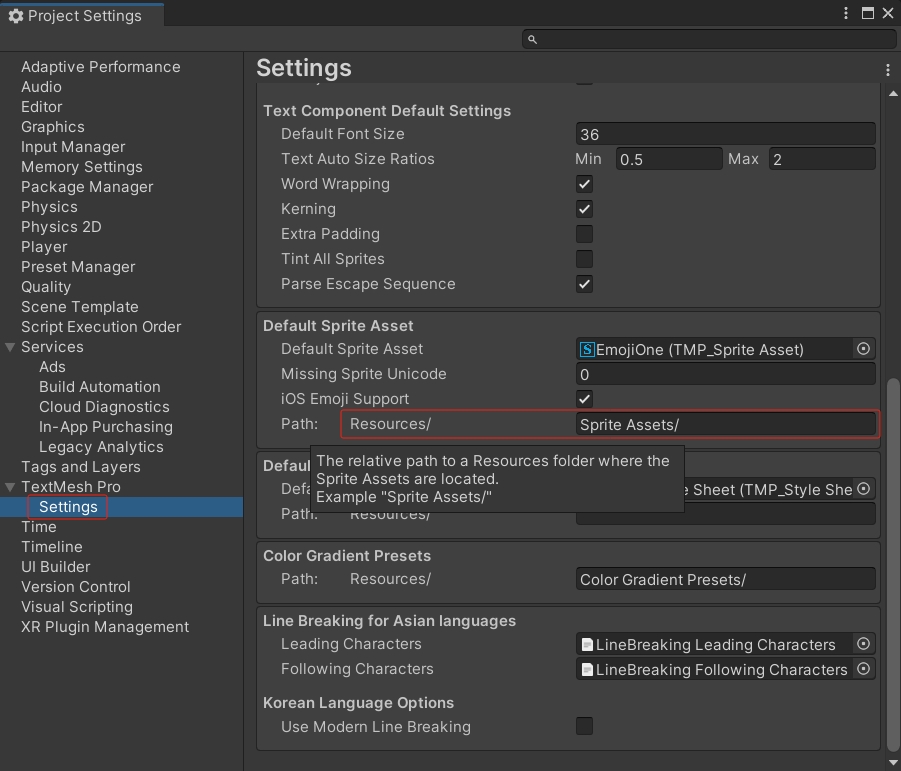
3.创建一个TextMeshPro组件显示测试内容
<gradient="GreenGradient">任务状态</gradient><sprite="TMPIcon2" name="1" color=#55FF55FF > <sprite="TMPIcon2" name="2">123
显示图文混排效果

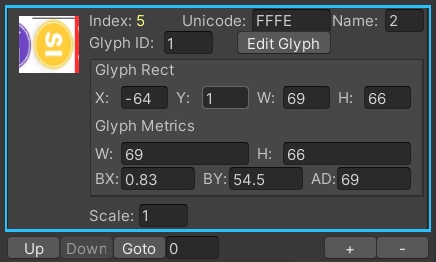
另外,我们是可以在 Sprite Asset 的 Inspector 窗口中调整单个 Sprite 属性值的。
评论:
发表评论: